

The Gemini in Chrome early access rollout for Chromebooks is finally here. If you’ve been waiting for a smarter browser that can read, summarize, compare, and even draft content inside tabs, this update matters.
But before you rush into a Gemini in Chrome download, you need clear guidance. Not hype. Not marketing claims. Just practical advice. I’ve tested Gemini inside Chrome on a mid-range Chromebook Plus device over the past few weeks.
I used it for research, email drafting, comparison shopping, and long-form content work. Some parts impressed me. Others still feel like early access. Here’s what you should know before enabling it.
What Is Gemini In Chrome?
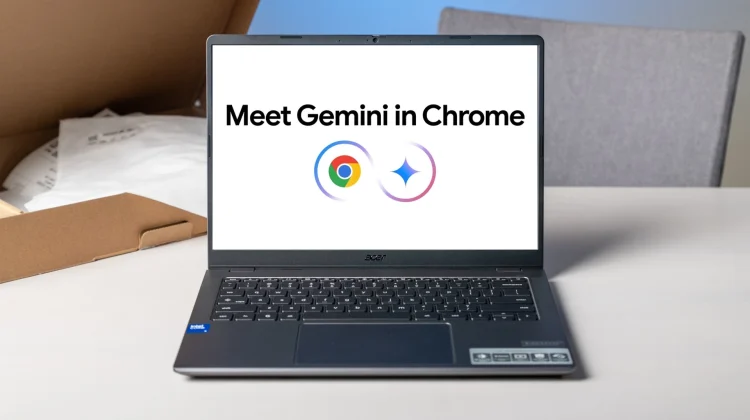
Google Gemini is Google’s AI model family. It powers tools across Google apps. Now, it’s integrating directly into the Google Chrome browser experience.
Read Also: How to Use Gemini AI Features on Chromebook Plus 2026?
Google is rolling this feature out to select Chromebooks, especially Chromebook Plus models. The goal is simple: turn your browser into an AI assistant that understands what’s on your screen. Instead of copying text into a chatbot, you can:
-
Ask Gemini to summarize a page
-
Compare two products in open tabs
-
Draft emails based on content you’re reading
-
Get explanations without switching windows
That sounds powerful. But does it actually work well?
How to Enable Gemini in Chrome (Step-by-Step)
Many users search for Gemini in Chrome how to enable because Google does not make it obvious. Here’s the process that worked for me:
1. Check Your Device Eligibility
Gemini in Chrome early access currently works best on:
-
Chromebook Plus models
-
Devices running the latest ChromeOS version
-
Logged-in Google account (personal or Workspace)
If you use an older Chromebook with limited RAM, performance may lag.
2. Update ChromeOS
Go to: Settings → About ChromeOS → Check for updates
Restart after updating.
3. Enable Early Access (If Available)
Some users need to:
-
Join Google’s AI preview program
-
Enable experimental AI features in Chrome settings
Look under: Settings → AI features or Experimental features
If you don’t see it yet, rollout may still be in progress.
What Gemini in Chrome Can Actually Do?
Let’s break down real use cases. I tested these daily.
You Must Also Like: Chrome: Google announced plan to combat notification overload
1. Smart Page Summaries
I opened a 3,000-word research article. Instead of skimming manually, I asked Gemini to summarize key points. It delivered:
-
Bullet points
-
Clear headings
-
Short explanation
Accuracy was around 85–90%. It occasionally missed nuance, but it saved time. Best for:
-
Students
-
Bloggers
-
Busy professionals
Not ideal for:
-
Legal or medical documents requiring precision
2. Chrome Gemini Auto Browse
This feature feels futuristic. With Chrome Gemini auto browse, the AI can:
-
Compare information across tabs
-
Pull pricing differences
-
Highlight specs
I tested it while comparing laptops across three e-commerce sites. Gemini identified:
-
RAM differences
-
Processor generations
-
Price gaps
It worked well for structured data. It struggled when pages had pop-ups or dynamic content.
3. Writing Assistance Inside the Browser
Gemini helps draft:
-
Emails
-
Social posts
-
Product comparisons
-
Content outlines
I used it to draft a client email based on a PDF proposal open in another tab. It understood context surprisingly well.
Still, I always edit the output. AI drafts fast. Humans refine tone.
Who Should Download Gemini in Chrome?
Let’s be practical. Best For:
Students
-
Quick summaries
-
Research help
-
Explanation of difficult topics
Freelancers & Writers
-
Faster research
-
Draft generation
-
Brainstorming
Online Shoppers
-
Tab comparison
-
Feature breakdown
Remote Workers
-
Email drafting
-
Meeting recap summaries
Not Ideal For:
Low-end Chromebooks
-
4GB RAM struggles
-
Slower processing
Privacy-sensitive users
-
AI scans active tab context
-
You must trust Google’s data policies
People expecting perfection
-
AI still makes errors
-
Needs human review
Real Pros of Gemini in Chrome Early Access
Here’s what genuinely impressed me:
1. Speed: It cuts research time in half. That alone adds value.
2. Context Awareness: It reads the page you are on. You don’t paste manually.
3. Clean Integration: No extra extensions needed. Built-in feel.
4. Less Tab Switching: This reduces cognitive overload.
Honest Cons You Should Know
No tool is perfect.
1. Accuracy Is Not 100%
Gemini sometimes:
-
Misinterprets product specs
-
Simplifies complex ideas too much
Always double-check.
2. Performance Depends on Hardware
On my 8GB RAM Chromebook Plus, it felt smooth.
On a 4GB model I tested briefly, lag appeared.
3. Privacy Considerations
Gemini reads active tab content to function. If you work with sensitive business data, review:
-
Account settings
-
AI data usage permissions
4. Still Early Access
Features may:
-
Change suddenly
-
Break temporarily
-
Improve without notice
Is Gemini in Chrome Safe to Use?
Short answer: Yes, for general use. But follow these best practices:
-
Avoid sharing confidential data blindly
-
Do not rely on AI for legal/medical advice
-
Fact-check critical outputs
Google states it uses AI responsibly, but you must use judgment.
Performance Test: My Daily Workflow
Here’s how I used it for five days:
Day 1: Research Articles
Summarized three long blog posts in minutes.
Day 2: Product Comparison
Compared three Chromebooks before recommending one.
Day 3: Email Drafting
Created structured replies from meeting notes.
Day 4: Learning Session
Asked Gemini to explain a technical concept in simple words.
Day 5: Editing Help
Refined content headlines for clarity. It saved roughly 30–40 minutes daily.
That’s meaningful for productivity.
Gemini vs Traditional Extensions
Before this rollout, many people used:
-
ChatGPT in separate tabs
-
Chrome AI extensions
-
Copy-paste workflows
Built-in Gemini reduces friction.
However:
Dedicated AI tools still offer:
-
More advanced prompts
-
Better customization
-
Longer memory threads
Gemini in Chrome focuses on convenience, not depth.
Common Questions Answered (AEO Optimized)
Is Gemini in Chrome free?
Currently, early access is free for eligible Chromebook users. Google may introduce premium tiers later.
How do I download Gemini in Chrome?
You don’t download it separately. It integrates into Chrome once enabled through updates and AI feature settings.
Does Gemini in Chrome work offline?
No. It requires internet access.
Can I disable it?
Yes. Go to Chrome settings → AI features → Toggle off.
Buying Advice: Should You Upgrade Your Chromebook for Gemini?
Be careful here. Do not upgrade just for AI. Upgrade only if:
-
Your device already struggles
-
You multitask heavily
-
You want long-term ChromeOS support
If you do upgrade, aim for:
-
8GB RAM minimum
-
Chromebook Plus certification
-
Recent Intel or ARM processor
AI features rely on system responsiveness.
Practical Tips to Avoid Disappointment
Here’s what worked best for me:
-
Use clear prompts.
Short, direct instructions give better results. -
Ask follow-up questions.
Gemini improves with clarification. -
Always verify facts.
Especially pricing and statistics. -
Use it as an assistant, not a replacement.
-
Keep Chrome updated weekly.
Where Gemini Still Needs Improvement?
Google is moving fast, but gaps exist.
-
Deeper research accuracy
-
Better structured comparison tables
-
More transparency on data usage
-
Offline summaries (future hope)
Expect improvements throughout 2026.
Final Verdict: Is Gemini in Chrome Worth Trying?
If you already own a compatible Chromebook, yes.
If you expect a flawless AI researcher, no. Gemini in Chrome early access feels like the beginning of something powerful. It reduces friction. It saves time. It simplifies browsing.
But it is still a tool. Not a brain.
- Use it wisely.
- Edit its output.
- Stay critical.
That’s how you get the most value from AI inside Chrome.