
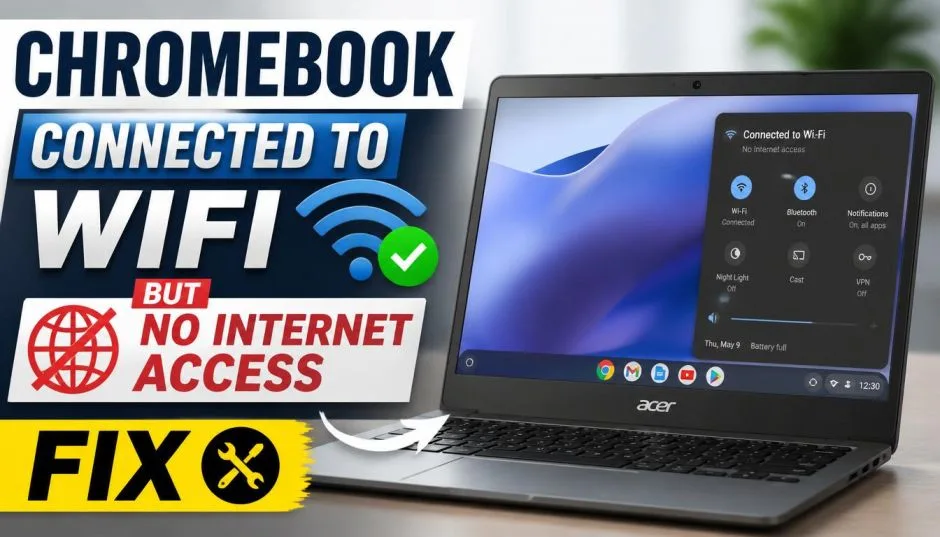
You open your Chromebook. You see the Wi-Fi icon. It looks strong. But you cannot load a webpage. Your email will not sync. Nothing works. It is a frustrating feeling. Your Chromebook shows it is connected. But you have no internet.
The good news is you can fix this. The problem is usually simple. You just need the right steps . This guide will show you how. It will also explain why this happens.
Why Does My Chromebook Say Connected No Internet?
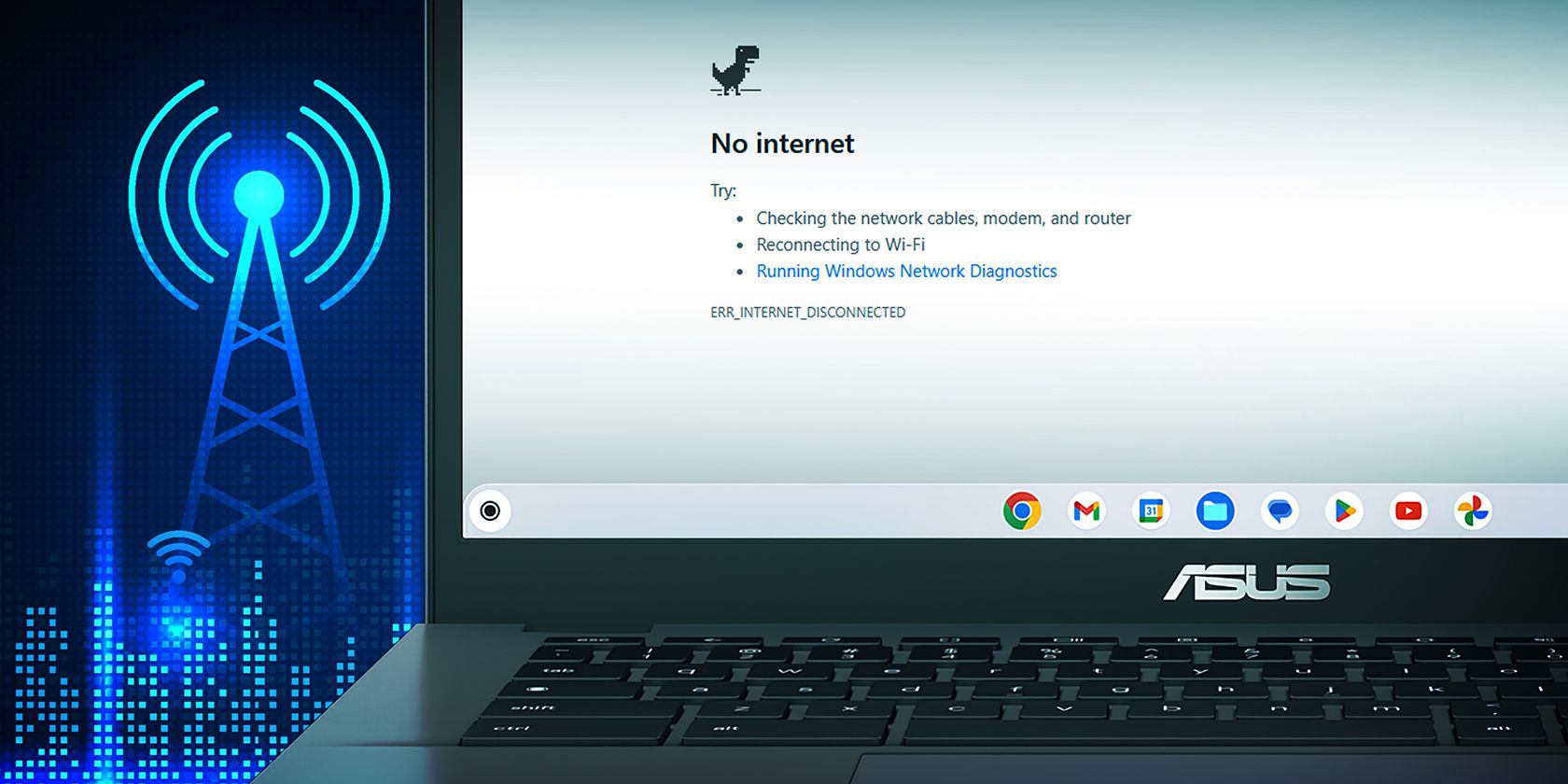
Understanding the problem helps you fix it. Your Chromebook can connect to your router. That is why it says "connected." But it cannot reach the wider internet. Something is blocking the connection.
Read Also: How to Print From Chromebook Without Google Cloud Print?
Common causes include:
-
Router Issues: The router might be the problem. It can fail to provide internet while still running a local network .
-
Network Configuration Errors: Your Chromebook's settings might be wrong .
-
"Portal State" Problems: Your Chromebook might think you are on a login page. It calls this a portal state no internet Chromebook scenario. It happens with public Wi-Fi that needs you to accept terms .
-
DNS Errors: The server that translates website names into addresses might be down .
-
ISP Outages: Your Internet Service Provider could have a problem in your area .
The "Portal State" Explained
This is a technical point but worth knowing. Your Chromebook checks for internet by trying to reach a Google page at http://clients3.google.com/generate_204 .
If the request fails, your Chromebook thinks you are in a "captive portal." This is a login page at a hotel or coffee shop. It will not give you full internet access until you click "Accept" or sign in .
If you are at home and your network is open, this means a problem exists that is preventing your Chromebook from reaching that Google page .
Step-by-Step Fixes for Chromebook Network Not Available But Connected to WiFi
Try these steps in order. Test your internet after each one.
1. Restart Your Chromebook
This is the simplest solution. It clears temporary glitches.
Click the status area in the bottom right corner. Select the Power icon to turn it off. Wait a minute, then turn it back on .
2. Restart Your Router and Modem
Sometimes the router needs a reset.
Unplug the power cord from your router and modem. Wait for 30 seconds. Plug the modem back in first. Wait for it to connect. Then plug in the router .
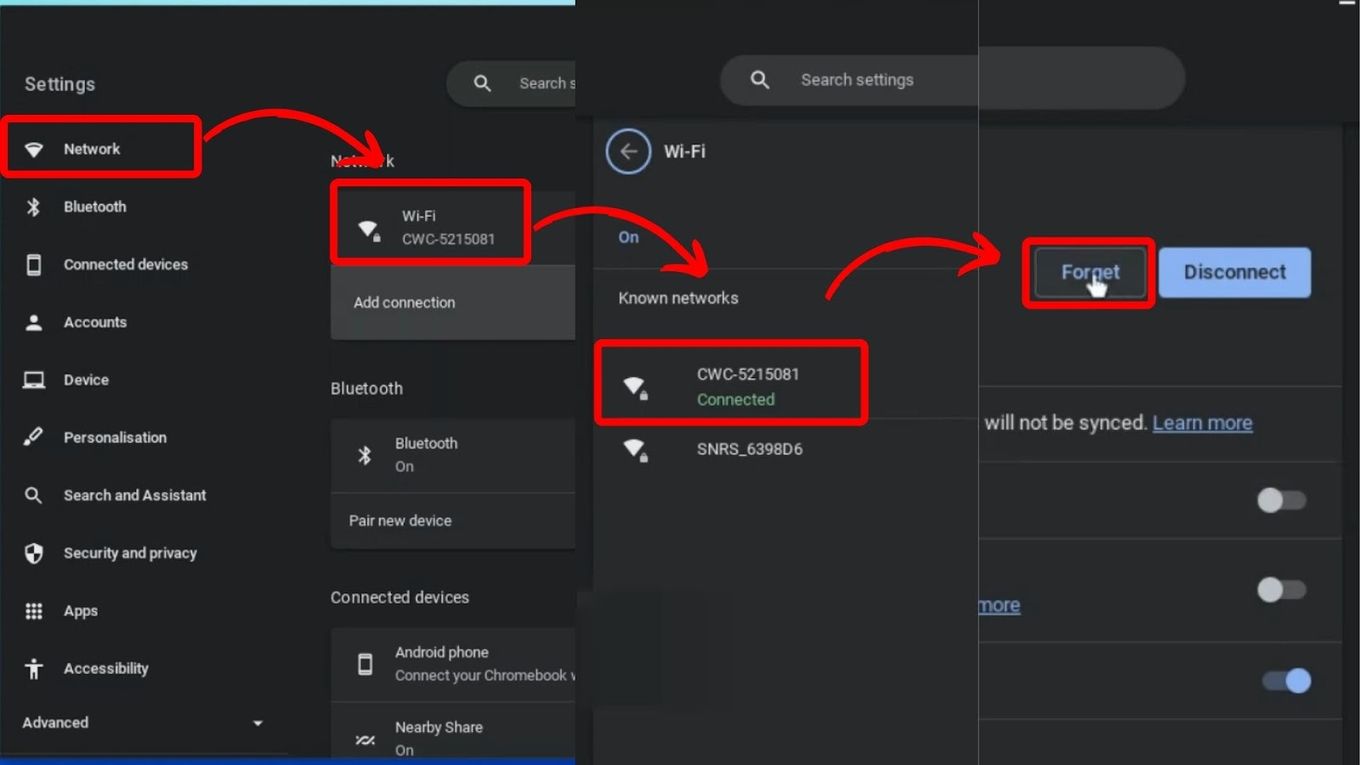
3. Forget and Reconnect to the Network
Your Chromebook might have saved bad settings.
-
Click the Wi-Fi icon.
-
Select "Wi-Fi settings."
-
Click on your network and select "Forget" .
-
Reconnect by selecting your network and entering the password again.
4. Check for a Captive Portal
If you are on a public network, you might need to sign in. Open your browser and try to visit a website. You might be redirected to a login page .
5. Change Your DNS Settings
Sometimes the DNS server is the problem.
-
Go to Settings > Network > Wi-Fi.
-
Click on your network.
-
Under "Network," switch from "Automatic" to "Custom."
-
Enter a new DNS address like Google's public DNS (8.8.8.8 and 8.8.4.4) .
-
Save the changes and test your connection .
6. Check Your Proxy Settings
An incorrect proxy setting can block internet access.
Go to Settings > Network. Select your Wi-Fi network and scroll down to "Proxy." Ensure it is set to "No proxy" .
7. Update Chrome OS
Outdated software can cause connection issues.
Go to Settings > About Chrome OS. Click "Check for updates." If an update is available, it will download and install .
8. Try a Different Network
This is a great test. It tells you where the problem is.
You Must Also Like: How to Optimize Chromebook for Gaming? A Comprensive Guide
If you have a smartphone, try turning on your mobile hotspot. Connect your Chromebook to it. If it works, the problem is with your home network, not your Chromebook.
When Nothing Else Works
If you are still stuck, the problem might be deeper.
Powerwash Your Chromebook
This is a factory reset. It erases all local files . Back up your data first.
Go to Settings > Advanced > Reset settings. Select "Powerwash" and follow the prompts .
Contact Support
If you still have issues, contact support. You can visit the Chromebook Help Center on another device. You can also call Google Support .
Frequently Asked Questions
Q1: Why does my Chromebook say connected no internet?
It means your Chromebook can connect to your router, but the router cannot connect to the internet. The problem could be your router, your ISP, or your Chromebook's settings .
Q2: How do I fix Chromebook network not available but connected to WiFi?
Start by restarting your Chromebook and your router. If that does not work, forget the network and reconnect. Check your DNS and proxy settings.
Q3: What is portal state no internet Chromebook?
It means your Chromebook thinks it is on a network that requires a login. This happens with public Wi-Fi. If you are at home, it means your Chromebook cannot verify the connection .
Q4: Can a VPN cause this issue?
Yes, a VPN can sometimes cause connectivity problems. Try disconnecting from your VPN and see if your internet works.
Q5: Why do other devices connect but my Chromebook doesn't?
The problem is likely with your Chromebook. Try forgetting the network and reconnecting. Also check your DNS and proxy settings. Restarting your Chromebook often fixes the issue.