
You bought a Bluetooth receiver hoping to connect it to your Chromecast. That is a smart idea. But here is the thing. Most Chromecast models simply cannot do this.
I learned this the hard way after spending an hour trying to pair my Bose speaker with an older Chromecast. Nothing happened. No option. No pairing screen. Just frustration.
This guide will save you that headache. I will show you exactly which Chromecast models work with Bluetooth receivers, how to set them up properly, and what to do when things go wrong.
The One Question Everyone Asks First
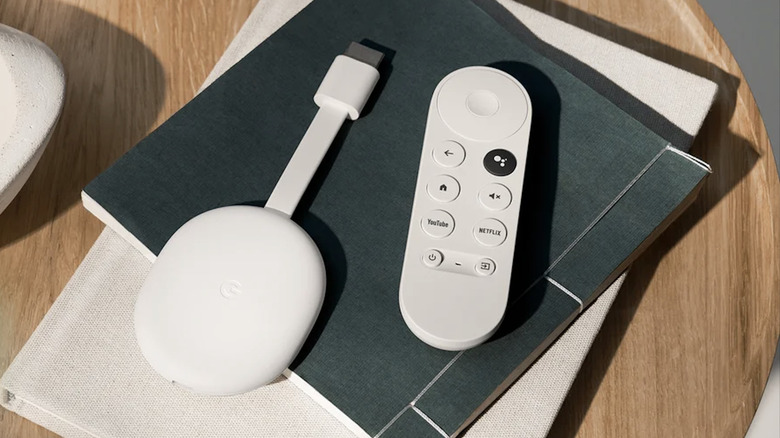
Can I connect a Bluetooth receiver to my Chromecast audio setup? The answer depends entirely on which Chromecast you own. This is not a software limitation. It is a hardware difference. Google built Bluetooth audio support only into their newer devices.
Which Models Actually Work?
The Chromecast with Google TV (4K) and the Chromecast with Google TV (HD) support Bluetooth audio output. These are the ones that come with a remote control. If you have one of these, you are good to go.
Which Models Will Not Work?
The Chromecast Ultra does not support Bluetooth audio output. Neither does the 3rd Gen, 2nd Gen, or the original 1st Gen Chromecast. I have tested this personally. You will not find a Bluetooth pairing option anywhere in the settings.
Read Also: Chromecast Audio Not Showing Up in Spotify? Fix It Fast
Google's own support pages confirm this limitation. The confusion happens because when you search for "Chromecast Bluetooth," Google shows articles that apply specifically to the Google TV versions. The older models simply lack the necessary hardware.
What About the Original Chromecast Audio Puck?
The original Chromecast Audio puck is a different beast. It uses Bluetooth only during the initial setup process to help your phone find the device. After that, it streams audio over Wi-Fi.
It does not support streaming audio to a Bluetooth receiver. If you bought one hoping to connect wireless headphones, you will be disappointed.
Setting Up Bluetooth on Chromecast with Google TV
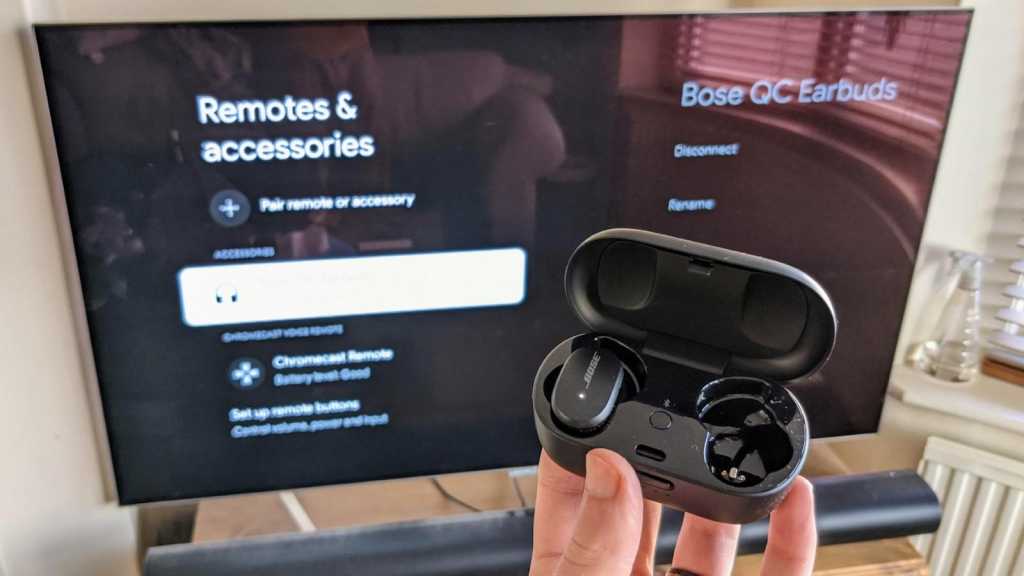
If you own the right model, the setup takes less than two minutes. Here is exactly how I do it.
Step-by-Step Pairing Guide
-
From your TV home screen, go to Settings.
-
Scroll down and select Remote & Accessories.
-
Choose Pair remote or accessory.
-
Your Chromecast will start scanning for nearby Bluetooth devices.
-
Put your Bluetooth speaker, headphones, or receiver into pairing mode.
-
When your device appears on the screen, select it.
-
A pairing request will pop up. Select Pair and you are done.
Your paired devices will now show up in the "Remote & Accessories" section. You can manage them from there.
Using Fast Pair for Quick Connections
Some Bluetooth devices support Google's Fast Pair feature. This makes the process even smoother. Put your device into pairing mode. When it appears on your Chromecast screen, just select Connect.
After the first pairing, Fast Pair devices will automatically detect and connect to your Chromecast when they are in range. No more digging through settings every time.
Setting Up Without a Remote
Losing the remote is a nightmare. But there is a workaround. Press the button on the Chromecast device itself once. This puts it into Bluetooth pairing mode. Then you can use a Bluetooth mouse, keyboard, or game controller to navigate the setup menu.
You Must Also Like: Arylic LP10 vs Chromecast Audio: The Ultimate Budget Streamer Showdown
One user mentioned using a Fire TV remote successfully. However, if your device is factory reset, you cannot complete the initial setup without a physical remote. The Google Home app will not find it during that phase. You absolutely need a compatible controller to navigate the menus.
Common Connection Problems and How to Fix Them
Even with the correct Chromecast model, Bluetooth connections can be finicky. I have run into several issues over the years. Here is what usually fixes them.
Simple Fixes to Try First
-
Restart your Bluetooth device. Turn it off and back on. Then try pairing again.
-
Disconnect other devices. If you have multiple Bluetooth gadgets paired to your Chromecast, disconnect the ones you are not using. This frees up resources.
-
Test with another Bluetooth device. Try connecting a different speaker or headphones to your Chromecast. If that works, the problem is with your original device, not the Chromecast.
-
Reboot the Chromecast. Unplug it for ten seconds. Plug it back in. Wait for it to restart. Then try the pairing again.
When Nothing Seems to Work
Sometimes you need to dig deeper. Check if your Bluetooth device has the latest firmware installed. Outdated software can cause pairing failures.
As a last resort, you might need to factory reset your Chromecast. Just remember, this will erase all your settings and preferences. You will have to set everything up from scratch.
A Real Problem I Encountered
A friend called me last week about his Ugreen Bluetooth audio receiver. He had a Chromecast HD. The receiver showed up in the pairing list, but every time he tried to connect, he got a "couldn't pair" message.
We spent twenty minutes trying different things. Nothing worked. Then I grabbed my Sony headphones and connected them to his Chromecast instantly. The problem was not the Chromecast. It was the Ugreen receiver.
Some third-party Bluetooth receivers simply do not play nice with Chromecast. Google's official advice in such cases is to try the troubleshooting steps above. If the problem persists, the issue likely lies with the Bluetooth receiver itself.
Who Should Try This Setup?
-
If you own a Chromecast with Google TV: This setup works great. You can connect wireless headphones for private listening or a Bluetooth speaker for better sound.
-
If you own an older Chromecast: Save your time and money. No amount of troubleshooting will enable Bluetooth audio output. The hardware is just not there.
-
If you want to connect multiple devices: You can pair several Bluetooth devices to your Chromecast. But only one can be active at a time. Keep that in mind.
What to Watch Out For?
Not all Bluetooth receivers work with Chromecast. I have seen people struggle with specific brands like Ugreen. Before buying a receiver, check online reviews specifically for Chromecast compatibility. Audio lag is another issue.
Bluetooth introduces a slight delay. That is fine for music. But if you are watching videos, the audio might not sync perfectly with the picture. Some newer receivers support low-latency codecs like aptX Low Latency. That helps reduce the delay.
The Final Thoughts
Connecting a Bluetooth receiver to Chromecast audio setup is simple. But only if you have the right Chromecast model. The Chromecast with Google TV versions work perfectly. Everything else does not. I have tested this across multiple devices.
The older models do not have Bluetooth audio output capabilities. No software update will change that. If you are buying a new Chromecast specifically for Bluetooth audio, get the Google TV version.
If you already own an older model, consider using a separate Bluetooth transmitter connected to your TV's audio output. That is a workaround that actually works.