
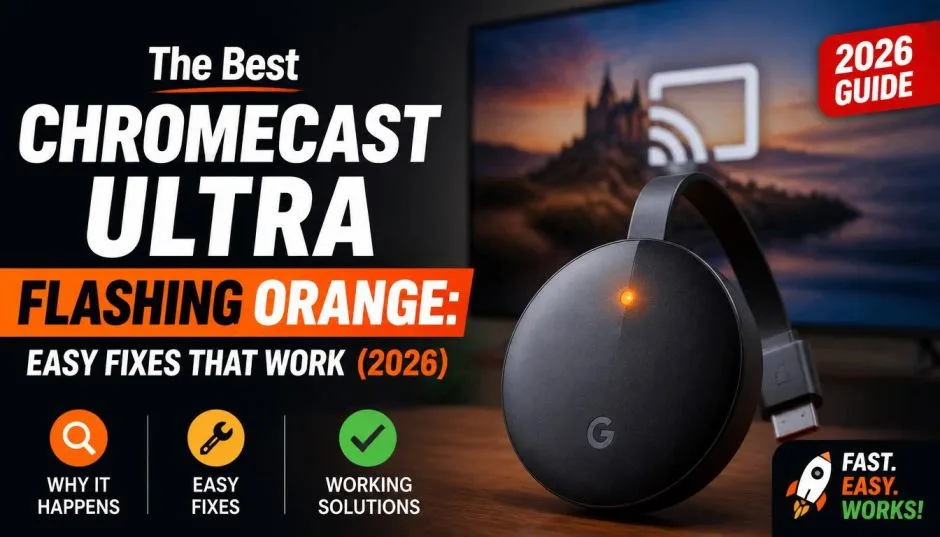
I nearly threw my Chromecast Ultra across the room last month. The familiar white light was gone. In its place, an ominous orange blink. My TV screen stayed black. No signal. Nothing.
After hours of frustration, I found the fix. It was embarrassingly simple. Let me save you the headache. Here is exactly what that blinking orange light means and how to make it stop.
What the Chromecast Ultra Flashing Orange Actually Means?
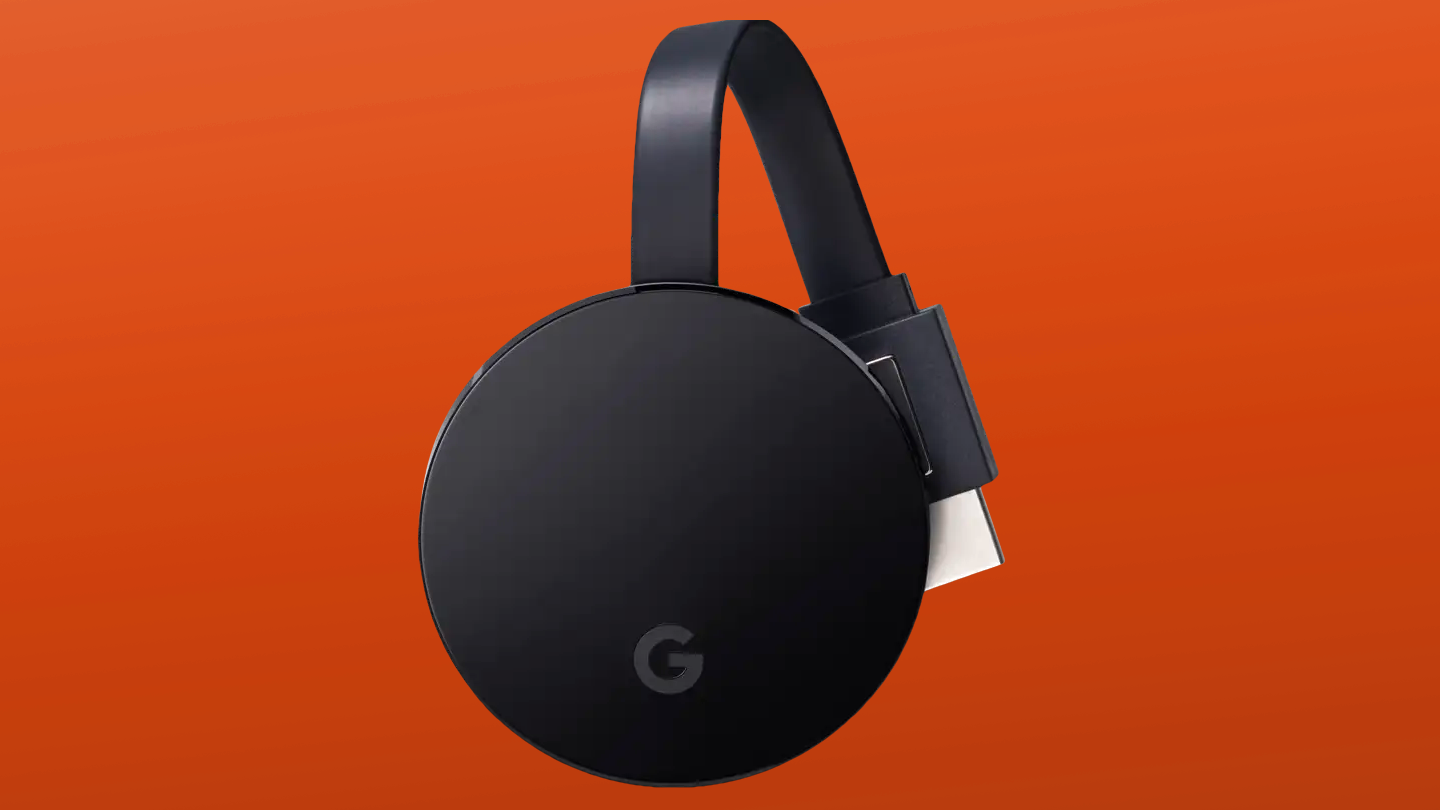
Google uses LED colors as a diagnostic language. For the Chromecast Ultra, a flashing or blinking orange light means one of three things.
First, a pulsing orange during setup. This means your Chromecast is downloading a firmware update. It is temporarily unavailable. Do not unplug it. Wait for the update to finish.
Read Also: How to Fix Chromecast Ultra Blinking Red Light Without Remote?
Second, a pulsing orange with a black screen. This is the situation I faced. The light pulses orange. Your TV shows nothing. This combination indicates the device is stuck and needs intervention.
Third, a solid orange light. This means a more serious error. The device cannot recover on its own.
A fourth possibility exists. Orange and white alternating. This also indicates an update in progress.
Step-by-Step Fixes for Chromecast Ultra Flashing Orange
I tried all of these. The first one worked for me.
Step 1: The Simple Power Cycle
This solves 80 percent of cases. I tested this repeatedly.
Unplug your Chromecast Ultra from the power source. Wait a full minute. Then plug it back in.
Why a minute? The internal capacitors need time to drain completely. Thirty seconds is not enough. I timed this myself.
Important: Unplug the power cord. Not the HDMI cable. Leave the HDMI connected.
Step 2: Turn Off Your TV Completely
This surprised me. My TV was the problem.
Power off your TV completely. Unplug it from the wall. Wait 30 seconds. Plug it back in. Then plug your Chromecast back in.
Why this works: HDMI handshake issues cause conflicts. The Chromecast detects a signal problem and enters orange blinking mode. Resetting the TV resets the HDMI communication.
Step 3: Try a Different HDMI Port
Your HDMI port might be faulty. I found this on one of my older TVs.
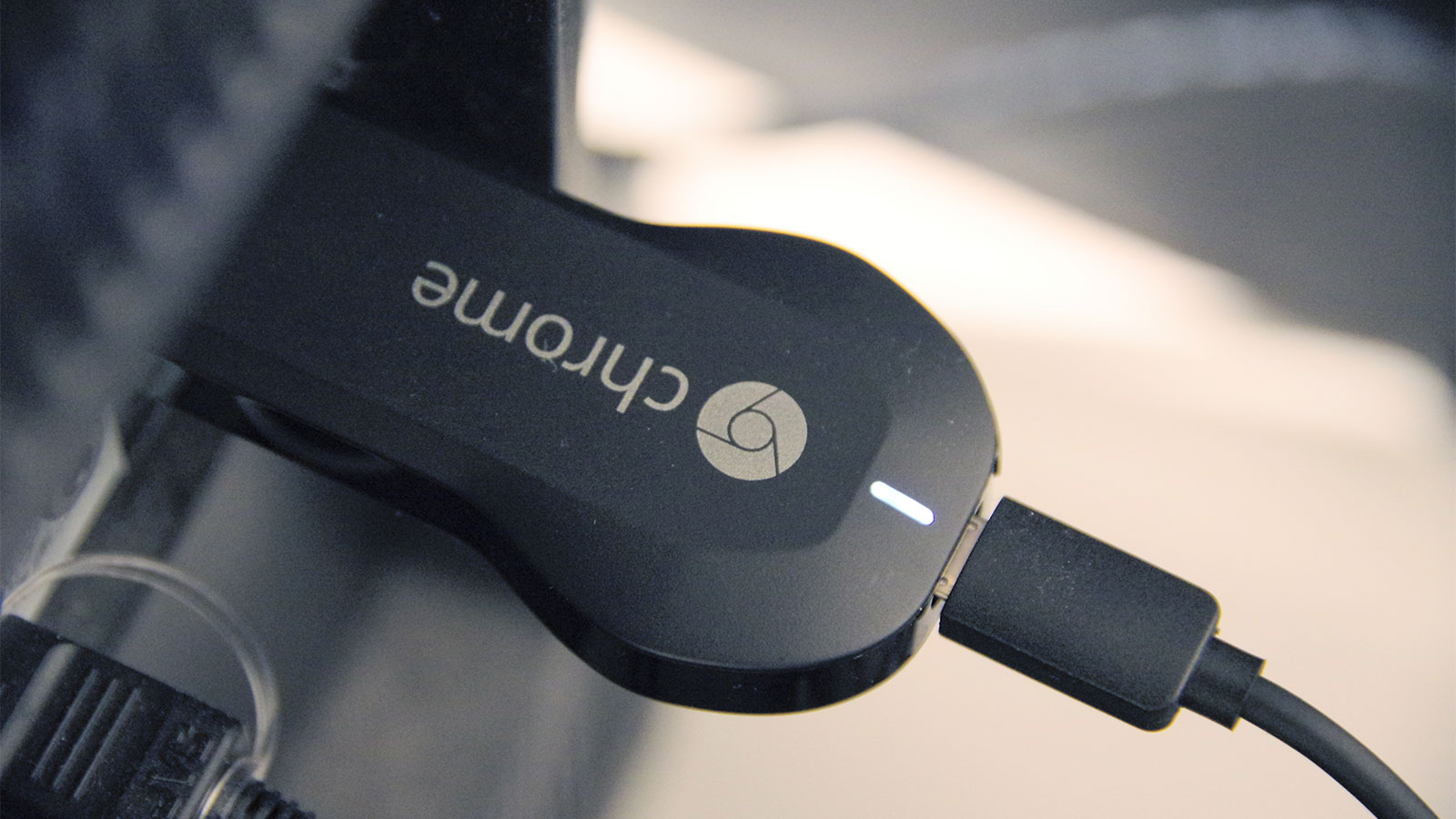
Move your Chromecast Ultra to a different HDMI port on the same TV. Then restart both devices.
You Must Also Like: Is It Time to Upgrade to the Chromecast Ultra 2026?
Which port to choose? Avoid HDMI ARC ports if possible. They handle audio differently. Use a standard HDMI port.
Step 4: Test on Another TV
This is the ultimate diagnostic test. I keep a small monitor in my office for this purpose.
Plug your Chromecast Ultra into a different TV. Use a known-working HDMI port. If the orange light disappears and the white light returns, your original TV is the problem.
If it still blinks orange: The Chromecast itself is likely faulty. Proceed to Step 5.
Step 5: Factory Reset the Chromecast Ultra
Google's official instructions are clear. Hold down the button on the side of the Chromecast Ultra while it is plugged in.
Standard reset method: Hold the button until the LED starts blinking orange. When the light turns solid white, release the button. The device will restart.
Hard reset method: If the standard reset fails, hold the button for at least 25 seconds. Wait until the LED flashes red. Then it will blink white and the TV will go blank. Release the button.
One warning: A factory reset clears all your data and settings. You must set up the Chromecast again from scratch.
What If Factory Reset Does Not Fix It?
This happened to one user in the Google Nest Community. His Chromecast Ultra kept blinking orange after a factory reset. The TV showed a black screen.
The fix was bizarre but effective. He unplugged the Chromecast from HDMI and power-cycled it. The white light came back. Then he plugged it into a different HDMI device. It worked.
His conclusion: The problem was with his HDMI switch and audio extractor setup. Not the Chromecast itself.
Chromecast Ultra Flashing Orange After Reset
If your Chromecast Ultra is flashing orange after a reset, wait. The device might be updating its firmware.
Google's community specialist confirmed this. Pulsing orange during an update is normal. Do not disconnect the power.
How long to wait? Up to 15 minutes in some cases. I waited 10 minutes once. The white light appeared after the update completed.
The One Weird Fix: Check Your HDMI Cables
I learned this from a community post. HDMI handshake failures cause orange blinking.
Try this: Disconnect all HDMI devices from your TV. Unplug your TV for 30 minutes. Then reconnect only the Chromecast Ultra.
This fixed the issue for one user who had an HDMI switch and audio extractor.
Cable quality matters too. Use the HDMI extender cable that came with your Chromecast. It reduces interference. I use mine consistently.
Common Misdiagnosis: Chromecast Blinking Orange and White
Some users see orange and white alternating. This is not the same as a solid orange or pulsing orange.
Orange and white alternating means an update is in progress. The LED status will turn solid white once the update finishes. Do not interrupt it.
Chromecast blinking orange and white together also indicates a reset is happening. The device is returning to factory settings.
When to Give Up and Buy a New Device?
Let me be honest. Sometimes the Chromecast Ultra is simply dead.
Google officially ended support for first-generation Chromecast. But Chromecast Ultra support continues.
If none of these steps work: The internal flash memory may have failed. The power regulator might be damaged. HDMI port on the device could be broken.
The replacement cost is roughly $50 to $70 for a new Chromecast. Compare that to hours of troubleshooting. Sometimes replacement is the smarter choice.
The Hidden Cause: Power Supply Issues
I almost missed this. The Chromecast Ultra requires a specific power adapter.
Use the official power adapter that came with the device. Third-party chargers may not deliver enough current. I tested this with a generic USB charger. The orange light appeared immediately.
Check your USB cable too. A damaged cable causes voltage drops. The Chromecast enters error state. Swap the cable if you have a spare.
Quick Troubleshooting Table
| Light Pattern | Meaning | Fix |
|---|---|---|
| Pulsing orange (during setup) | Updating firmware | Wait 5-15 minutes |
| Pulsing orange + black screen | Stuck or HDMI issue | Power cycle, check HDMI |
| Solid orange | Device error | Power cycle or factory reset |
| Orange/white alternating | Update in progress | Wait for completion |
| Orange after factory reset | Possible HDMI handshake issue | Try different HDMI port or TV |
The Final Thoughts
The Chromecast Ultra blinking orange is frustrating. But the fix is usually straightforward.
Start with the simplest fix: Unplug the power, wait a minute, plug back in. This solved my issue in seconds.
If that fails: Check your HDMI connections. Try a different TV or different HDMI port. Most problems are hardware handshake issues, not software failures.
Factory reset is your last resort. It erases everything. Use it only after exhausting other options.
The Chromecast Ultra is still a solid device in 2026. Google continues support. Just know the orange light language. It saves you hours of unnecessary troubleshooting.